




Summary

Appointment: preparation time
1. Preparation time
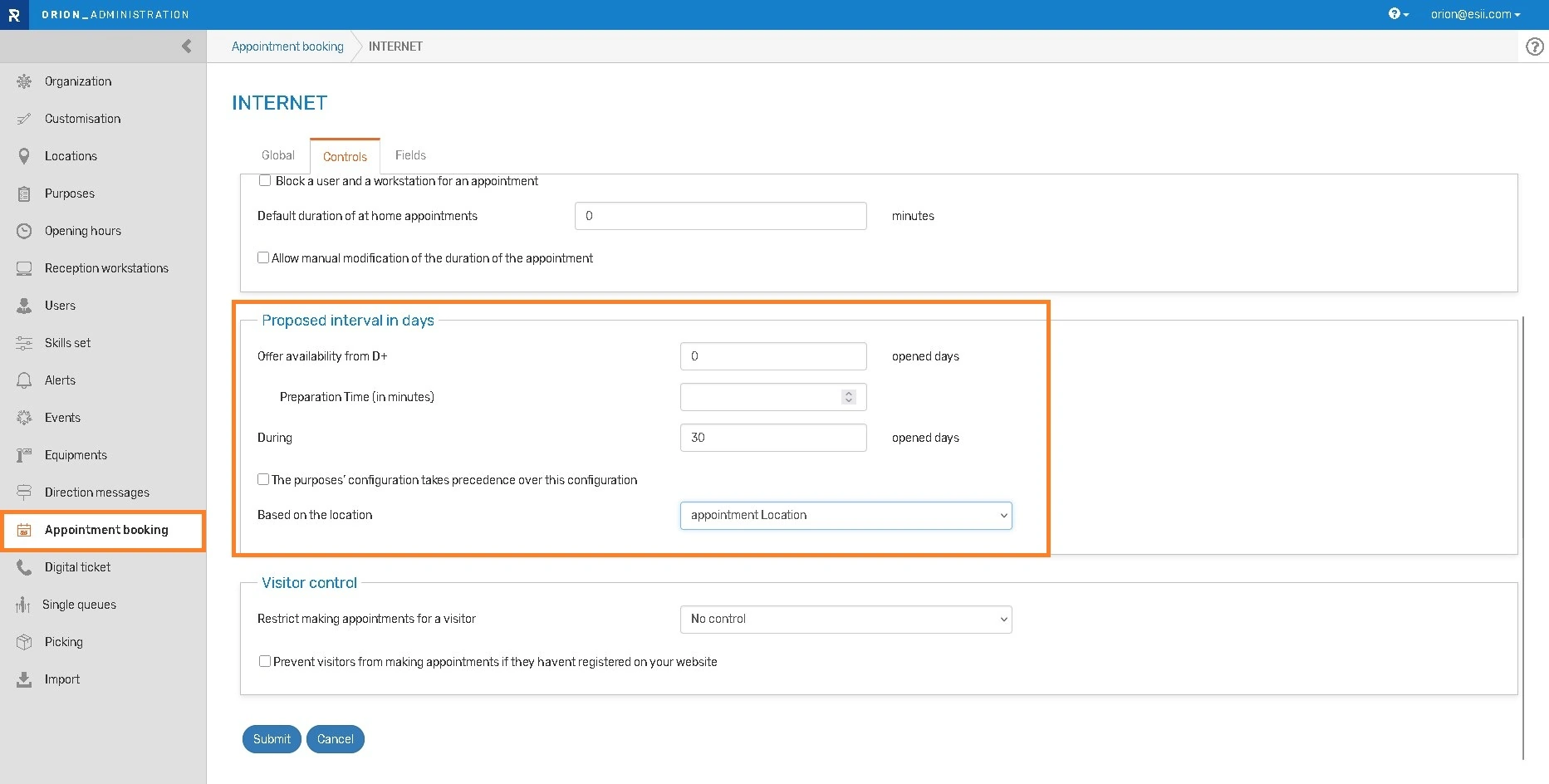
When an appointment requires preparation, it is now possible to define a preparation time in minutes (maximum 480 minutes, or 8 hours). This feature allows you to display available time slots as early as the same day.
How to activate this option?
- Access the “appointment booking” menu.
- In the “Controls” tab, enter 0 in the “Offer availability from D+” field.
- A new field titled “Preparation time (in minutes)” will appear, allowing you to specify the desired preparation time.
The preparation time must be continuous throughout the day.
2. Preparation time based on the schedules of another location
Appointment preparation can be done by users from a different location than the one where the appointment is scheduled.
If this is the case, in the appointment booking menu, you can choose which location to use for scheduling the appointment preparation times.
Kiosk: ticketing available before opening
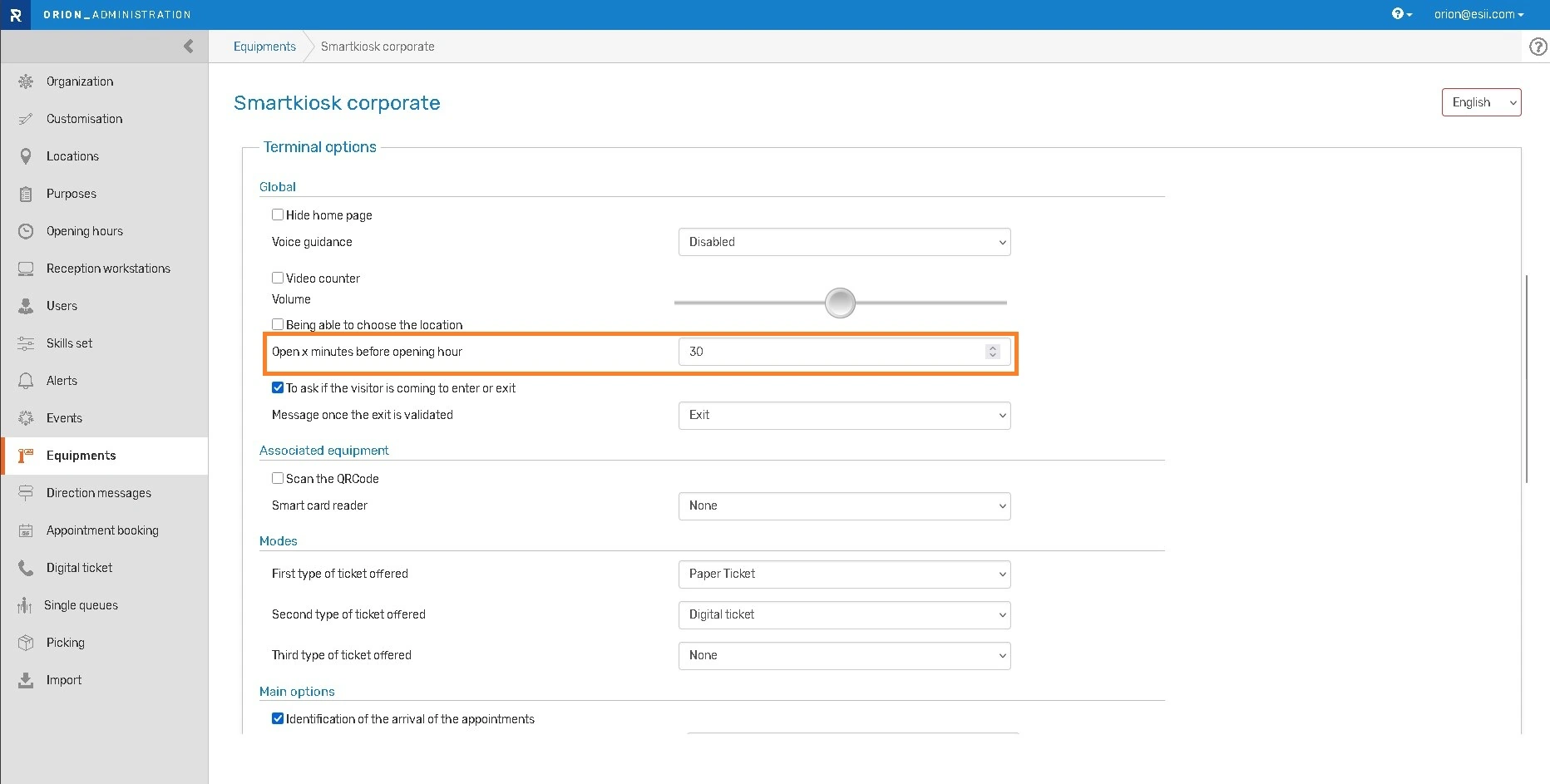
Allow queueing at the kiosk up to 60 minutes before opening time.
With this setting, only visitors present on-site can begin queuing, regardless of the ticket type.
How to activate this option?
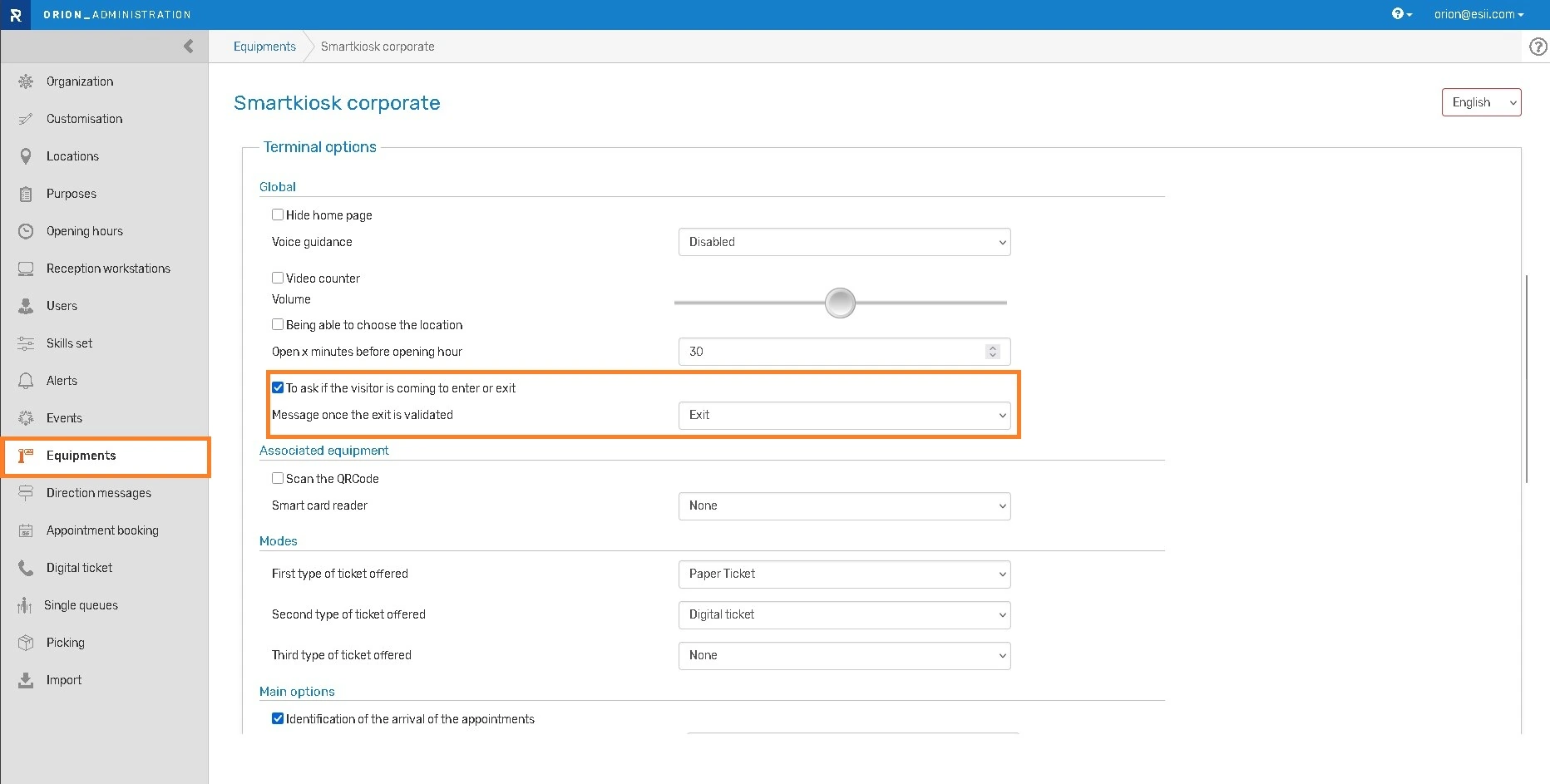
- In the “Equipments” menu, configure the setting on the kiosk of your choice.
- For appointments, the location setting “Consider in advance if arrives before (minutes)” takes precedence over this kiosk opening setting.
- Finally, check the setting “Do not allow queueing for a purpose unless there are connected resources that can receive users“: if enabled, queueing will remain impossible until a workstation is connected, even if the kiosk opens earlier.
Kiosk: searching for a purpose
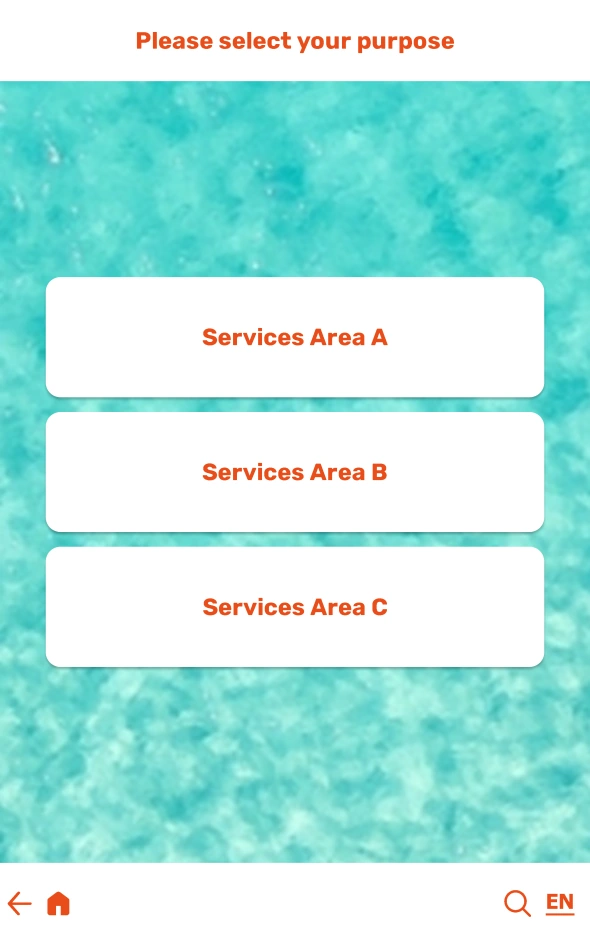
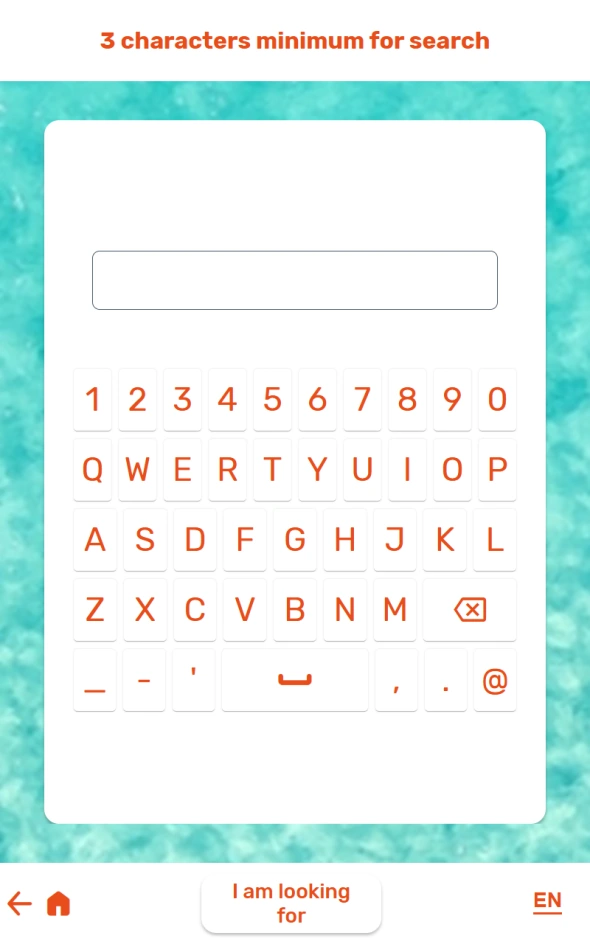
On the purpose groups and purposes screen, a search icon makes it easy to find a purpose of visit.
The search is performed on both the labels and the descriptions of the purposes by typing at least three characters.
Kiosk: indicate when leaving a facility
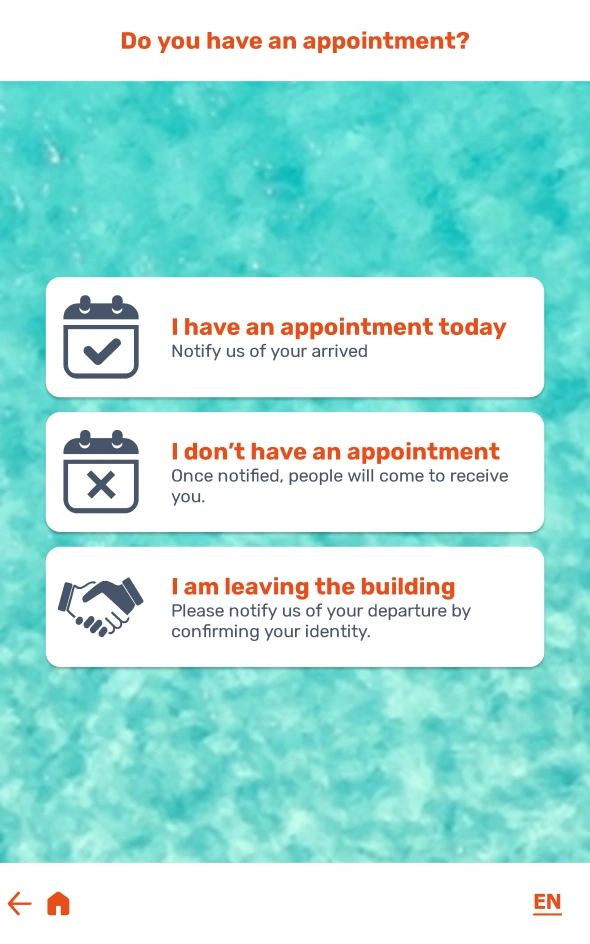
As part of a “corporate” reception, visitors can now indicate when they are leaving directly from the kiosk.
This feature is available with or without appointment confirmation.
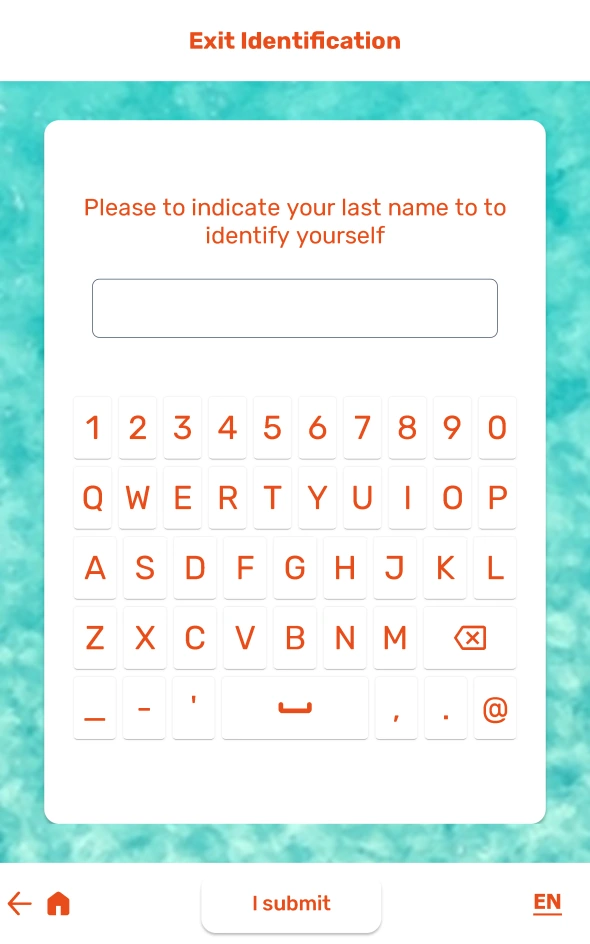
How does check-out work?
It depends on the kiosk configuration, according to the following steps:
- QR code reader activated: the visitor scans the QR code on their appointment or digital ticket.
- Mobile phone number field required: the phone number is requested to confirm the check-out.
- Otherwise: the visitor simply enters their name.
The confirmation message can be customized using direction messages.
Bug fixes and performances improvements
Kiosk
- Alignment of the “Back” button on the Twana 22” kiosk
- Do not display a blank page on the kiosk if no fields are mandatory and the user has a generic disability
- Display the name on the ticket, even when identifying an appointment, when the option is enabled
- Display the “Try again” button on the kiosk
Digital ticket
- Satisfaction survey is not offered if the visitor cancels their digital ticket
- Enlargement of the QR code allowing you to switch from a paper ticket to a digital ticket
- Do not increment the ticket number when scanning from “Reception” to obtain a digital ticket
Appointment making
- Display of all available slots for the week in case of a modification request via the email link
- Improved presentation of information entry on a reduced screen to allow entry of personal information
Reception
- Automatic change to “Arrived” status for telephone appointments at the time of the appointment
- Assignment of the correct PSH prefix to the ticket when routed via the reception module with a local printer
Video
- Play sound when there is a video call from a visitor without a disability and speech synthesis is active for people with disabilities
Multireception
- Automatic closure of open interviews at midnight in multireception mode
Orion survey
- Translation of the CSV export
Administration
- Translation of language labels in the list provided in the “Organization” menu
- An administrator with a permission profile can modify schedules
- Display of schedules with an administrator from a different location group
- Correct display of the list when there are many users
Analytics
- The “Locations” filter is taken into account in the automatic report
Import
- Importing external users does not create a group if it already exists
- Improved import of many locations
Message
- Removal of unnecessary spaces from text messages
Core
- Improvement request for timetable updates