

Configuration
This new version of the Reception module includes all existing settings and introduces new settings specific to the reception workstations. From now on, all configuration operations will be centralized in the Administration module, which becomes the single access point for settings. No settings are directly accessible to the user from the reception workstation, ensuring controlled and consistent operation for all users of a workstation.
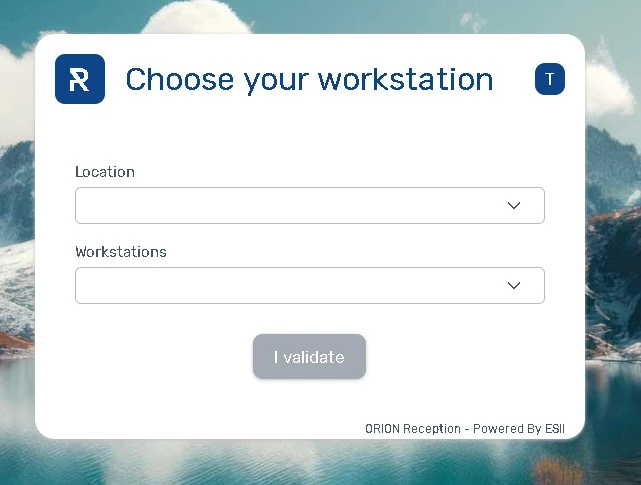
Selecting a workstation
When logging in, the workstations and locations offered depend directly on the user’s assigned permissions.
It is possible to resume a logged-in workstation and log out without any further action. Workstations already logged in are displayed in red, as in the current version.
It is also possible to access a workstation directly via a URL by adding the parameter : &res=<code du poste>
Main screen
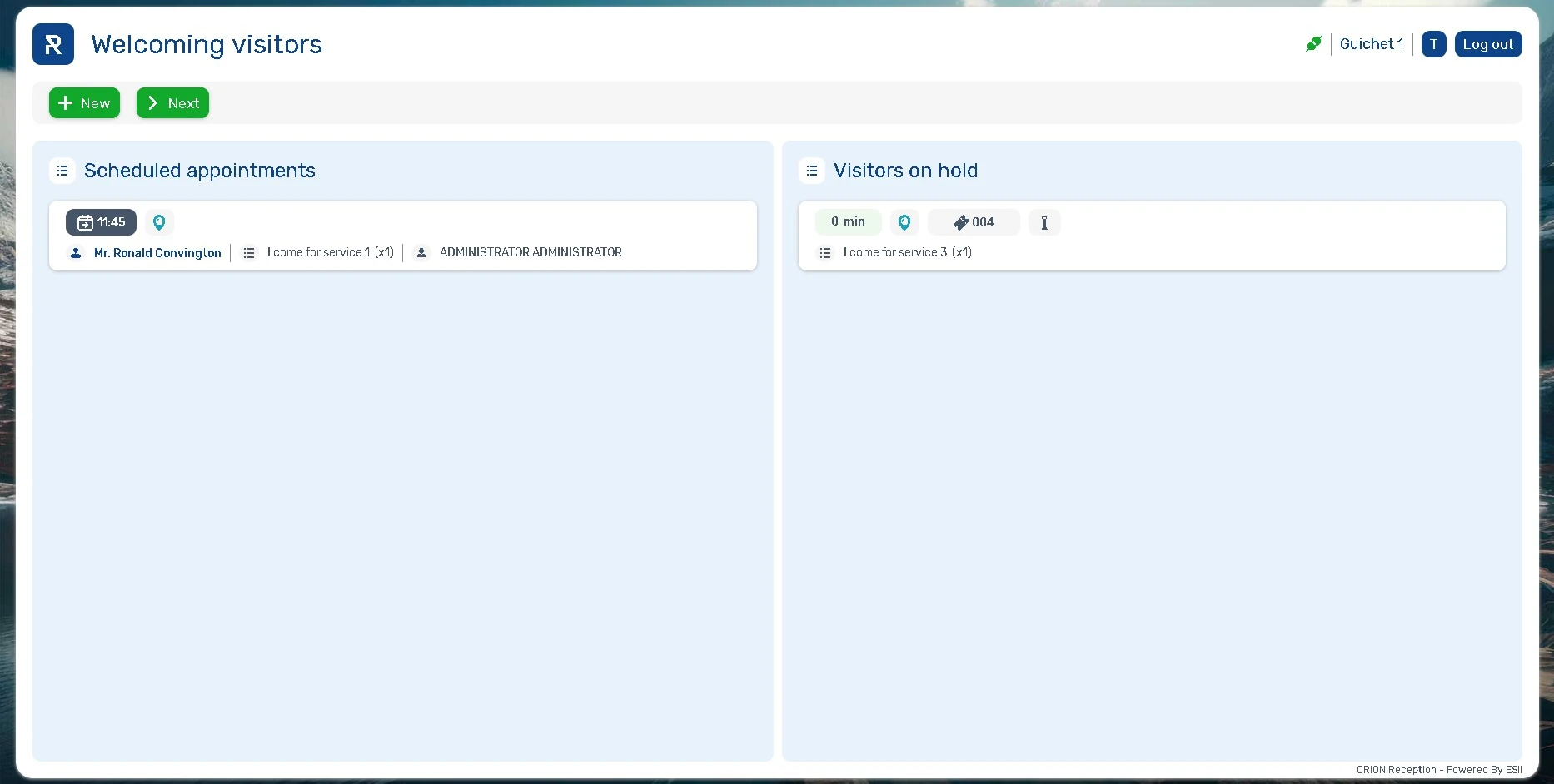
Global buttons
- + New: allows you to start an interview with a new visitor.
- >Next: calls the next visitor according to the calling rule.
Scheduled appointments list
The main screen displays the list of scheduled appointments, including the following information:
- Appointment time
- Status icon indicating delay level and duration
- Reception mode
- Visitor identification information: last name, first name, ID number
- Purpose(s) for the appointment
- Date of birth
- Custom fields
- User associated with the appointment
This list is displayed according to the new settings available in the Administration module.
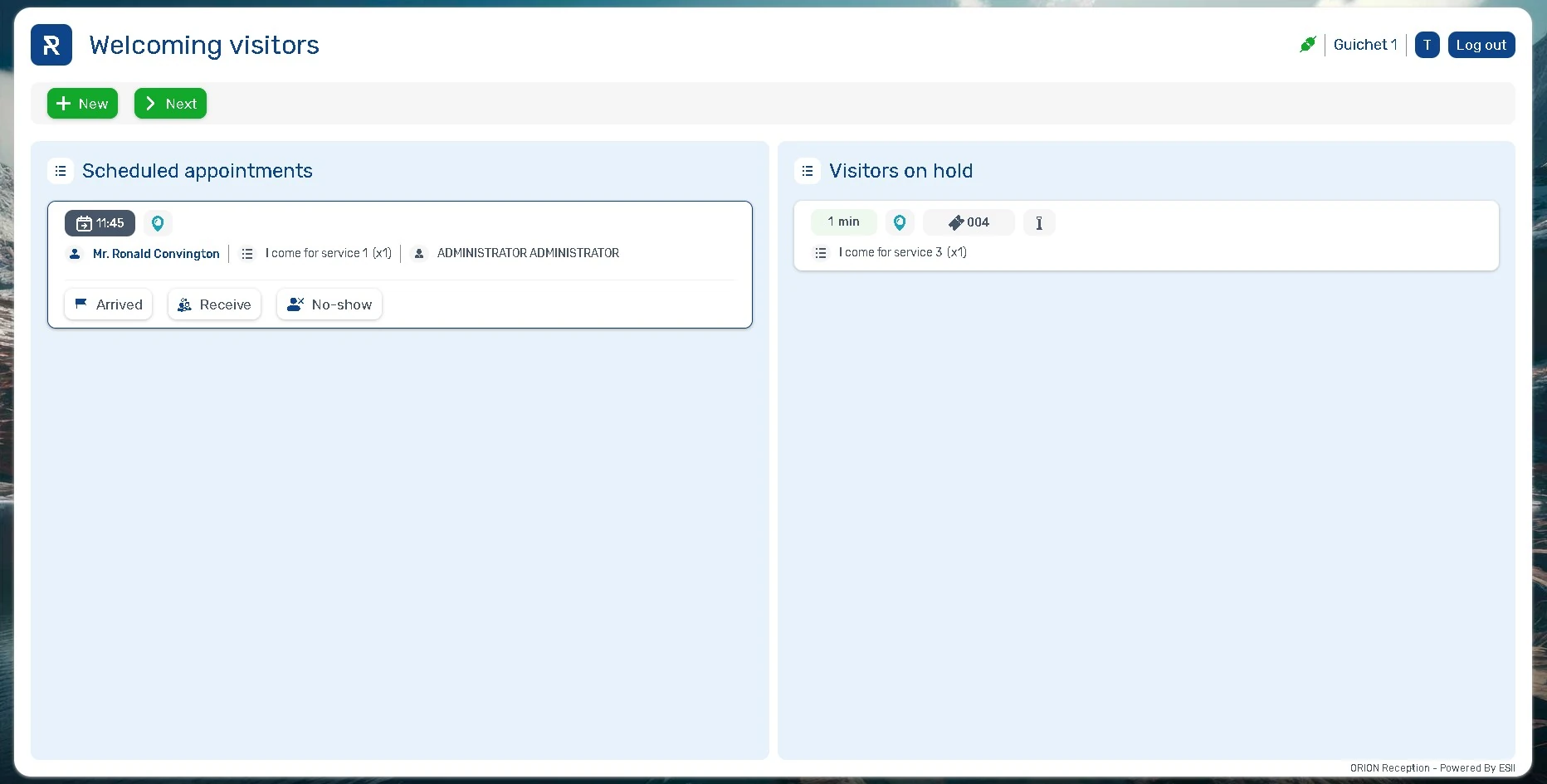
Actions on scheduled appointments
The following actions are available:
- Indicate the arrival of the appointment
- Receive the appointment
- Report no-show (if late = visitor did not show up; if no delay = canceled by the organization)
List of visitors on hold
The interface also displays a list of visitors currently waiting, with the following information:
- Waiting time or a dedicated icon if the visitor is paused
- Reception mode
- Ticket type
- Ticket number
- Identification method
- Visitor identification information: last name, first name, ID (if applicable)
- Purpose(s) of visit to be processed
- Date of birth
- Custom fields
- Requested user, when applicable
As with appointments, this list is displayed according to the settings defined in the Administration module.
Actions on visitors on hold
The following actions are available for visitors selected on the list, depending on the permissions defined for the workstation:
- Call a selected visitor
- Receive a selected visitor
Note: When directing a visitor, ticket printing is only compatible with ESII printers in this version.
Interview screen
Action buttons
The new version of the module provides the following action buttons during the interview:
- End the call
- Call back
- Report a no-show
- Start a videoconference
Purposes of visit
Purposes are now presented in two separate sections:
- Processing: groups the purposes that the workstation or user is authorized to manage.
- Direction: groups of purposes that fall outside the processing skills of the workstation or user.
In each of these sections, the purposes are sorted according to the order defined in the Administration module. If no specific configuration has been defined, they are sorted alphabetically.
The “Served” box is automatically checked for purposes that fall within the workstation or user’s scope. However, the user can check or uncheck it at any time.
A single button allows you to:
- End the interview if all purposes of visit are checked as “served.”
- Direct the visitor if at least a purpose of visit remains unprocessed.
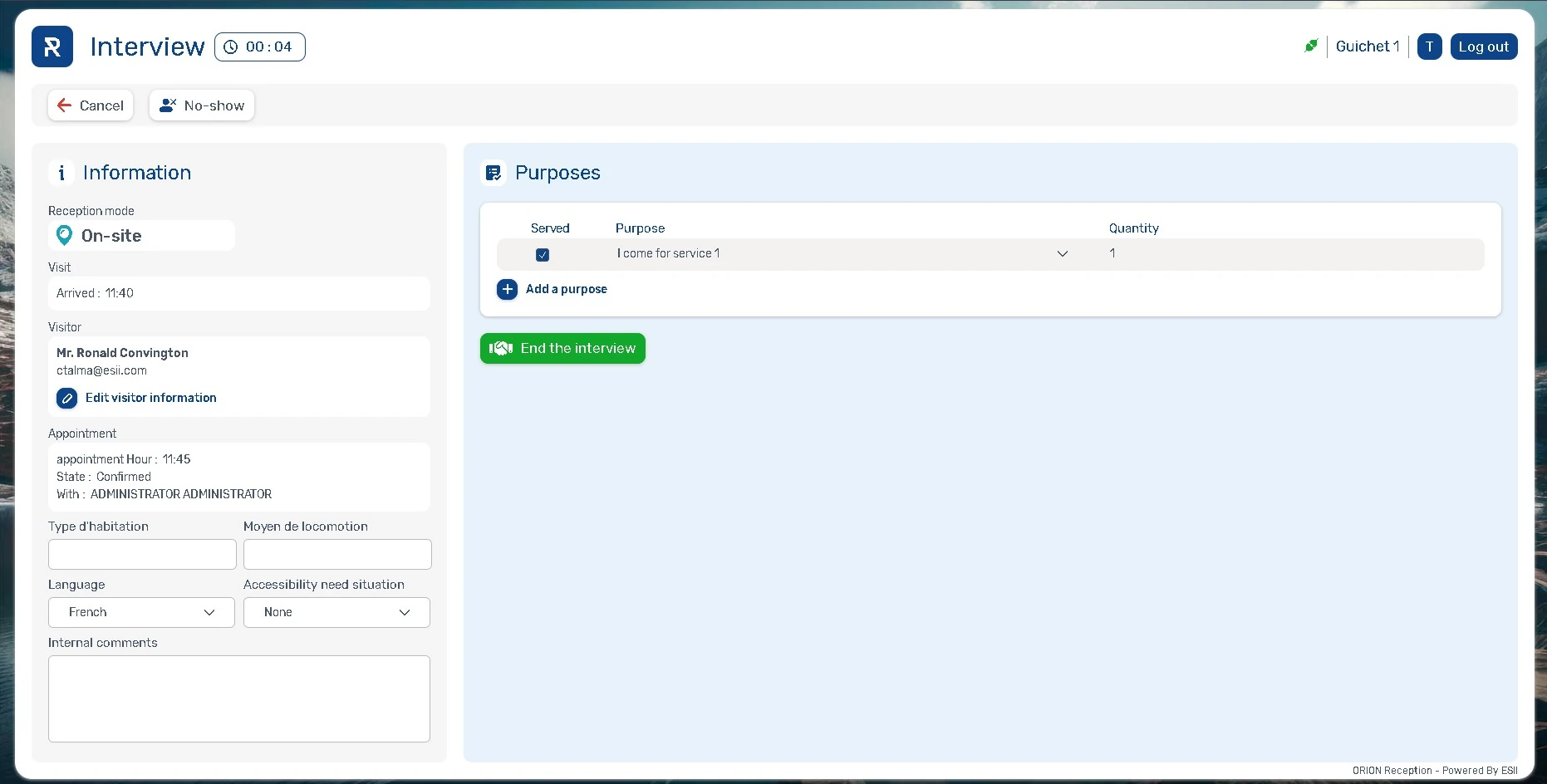
Information display
The new interface provides access to a range of useful information during the interview.
Information related to the visit:
- Main information: reception mode, ticket type, ticket number.
- Secondary information: arrival time, delay time, identification method.
- Purposes of visit already processed in previous interviews, displayed in read-only mode.
- Visitor information (not editable at this time)
- Details for appointments: appointment time, pre-reception status, workstation and user concerned.
Editable fields according to rights
- View and edit non-personal custom fields.
- Depending on the options enabled on the location, you can edit:
– language,
– disability/priority status,
– internal comments.
Other visible elements
- Time spent in interview
- Visitor information: viewable, but editing from the interview screen is not yet available